
When sending an email to a Gmail address, you may receive a bounce-back error stating that DKIM and SPF authentication checks did not pass. Gmail rejects unauthenticated emails to protect its users from spam and phishing.
Note: This article covers mail sent from your Cynet mailboxes. If your mail is hosted on Google Workspace instead, the records come from Google rather than from cPanel — see How to Collect Your Google Workspace DNS Records.
Symptoms
You receive a bounce-back message similar to this:
A message that you sent could not be delivered to one or more of its
recipients. This is a permanent error. The following address(es) failed:

  [recipient]@gmail.com
    host gmail-smtp-in.l.google.com [xxx.xxx.xxx.xxx]
    SMTP error from remote mail server after end of data:
    550-5.7.26 This mail is unauthenticated, which poses a security risk to the
    550-5.7.26 sender and Gmail users, and has been blocked. The sender must
    550-5.7.26 authenticate with at least one of SPF or DKIM. For this message,
    550-5.7.26 DKIM checks did not pass and SPF check for [yourdomain.com] did not
    550-5.7.26 pass with ip: [xxx.xxx.xxx.xxx].
    550 5.7.26 instructions on setting up authentication.
Key indicators in this error:
- 550 5.7.26 — Gmail's rejection code for unauthenticated email
- DKIM checks did not pass — Your domain's DKIM record is missing or incorrect
- SPF check did not pass — Your domain's SPF record is missing or incorrect
Causes
This error occurs when your domain's DNS is missing the email authentication records that Gmail requires:
- SPF (Sender Policy Framework) — A DNS TXT record that specifies which mail servers are allowed to send email on behalf of your domain
- DKIM (DomainKeys Identified Mail) — A DNS TXT record containing a public key that verifies your emails are genuinely from your domain and haven't been tampered with
Solution: Repair via cPanel (Recommended)
If your domain uses Cynet nameservers (ns1.cynethost.com through ns4.cynethost.com), cPanel can fix this automatically.
Step 1: Log in to cPanel
Navigate to yourdomain.com/cpanel or log in via the Cynet client area.
Step 2: Open Email Deliverability
In the cPanel dashboard, scroll to the Email section and click Email Deliverability.
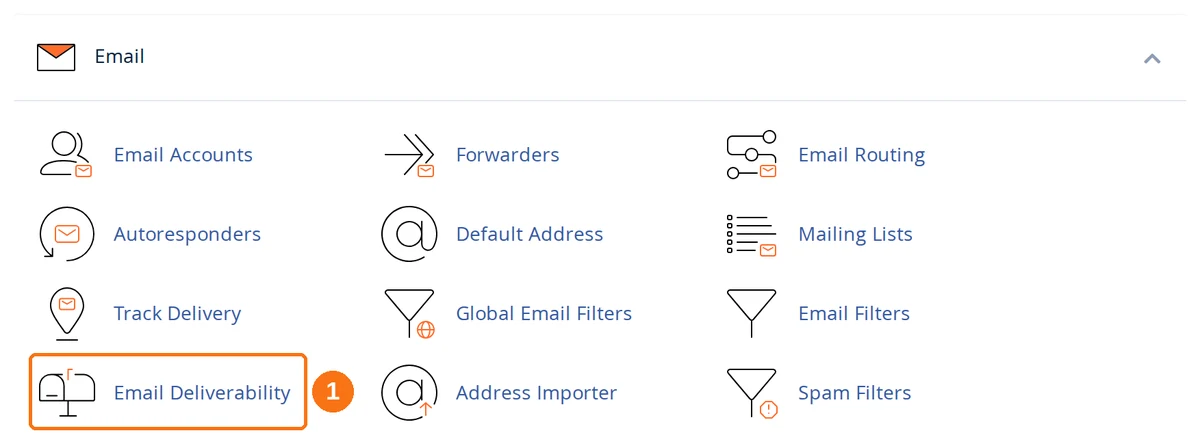
Step 3: Check Your Domain Status
Every domain and subdomain on the account is listed with its own status. Give the page a few seconds — the status column reads "Loading …" while cPanel queries DNS.
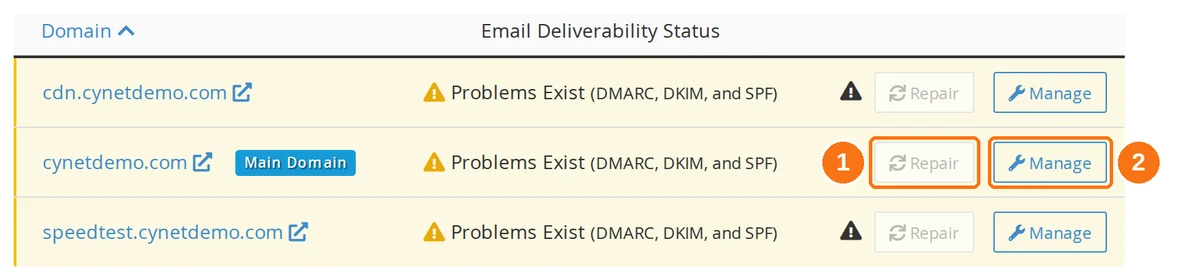
- Repair — fixes the records for you, and is greyed out when it cannot.
- Manage — opens the full record-by-record breakdown for that domain.
Step 4: Click Repair
Click Repair next to the affected domain and confirm. cPanel generates and installs the SPF and DKIM records for you, then re-checks them. Wait 1–2 minutes for it to finish.
If Repair is greyed out, it is telling you that it cannot help — hover it and cPanel explains why: "Automatic repair is not available for this domain because this system is not authoritative for this domain." Your DNS is hosted somewhere else, so follow the manual route below instead.
Step 5: Test Again
Send a test email to the Gmail address that previously bounced. The email should now be delivered successfully.
Note: DNS changes may take up to 1–2 hours to fully propagate, though most take effect within minutes on Cynet nameservers.
Solution: Manual DNS Update (External DNS)
If the Repair button is disabled or greyed out, it means your domain's DNS is not hosted on cPanel — you're using external nameservers (e.g., Cloudflare, GoDaddy DNS, Namecheap DNS). In this case, you need to manually add the records at your DNS provider.
Step 1: Get the Required Records
- In cPanel → Email Deliverability, click Manage next to the affected domain.
- The page gives each record a panel of its own — DKIM, SPF, DMARC and Reverse DNS (PTR) — showing its current state and the exact record your server expects.
- Use the Copy button beside a value rather than selecting the text by hand; these strings are long and one lost character breaks them.
The DKIM panel
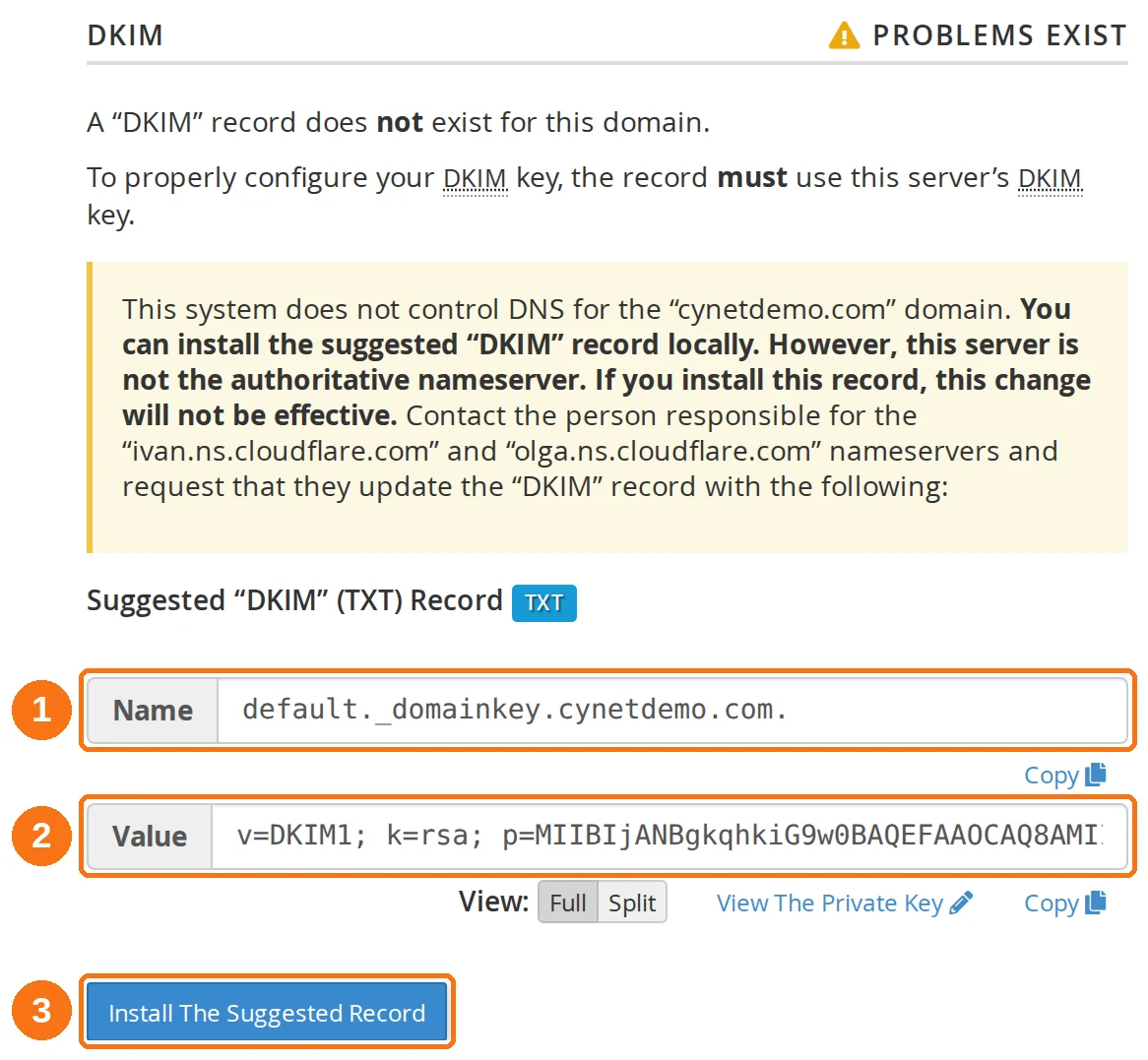
- Name — the host to create at your DNS provider:
default._domainkeyfollowed by your domain. - Value — the public key, beginning
v=DKIM1; k=rsa; p=and running on for several hundred characters. - Install The Suggested Record — only does anything useful when cPanel controls your DNS. See the warning below.
Warning: Leave View The Private Key alone. The public key in the Value field is the half that belongs in DNS; the private key stays on the server and should never be copied, shared or pasted into a DNS panel.
The SPF panel
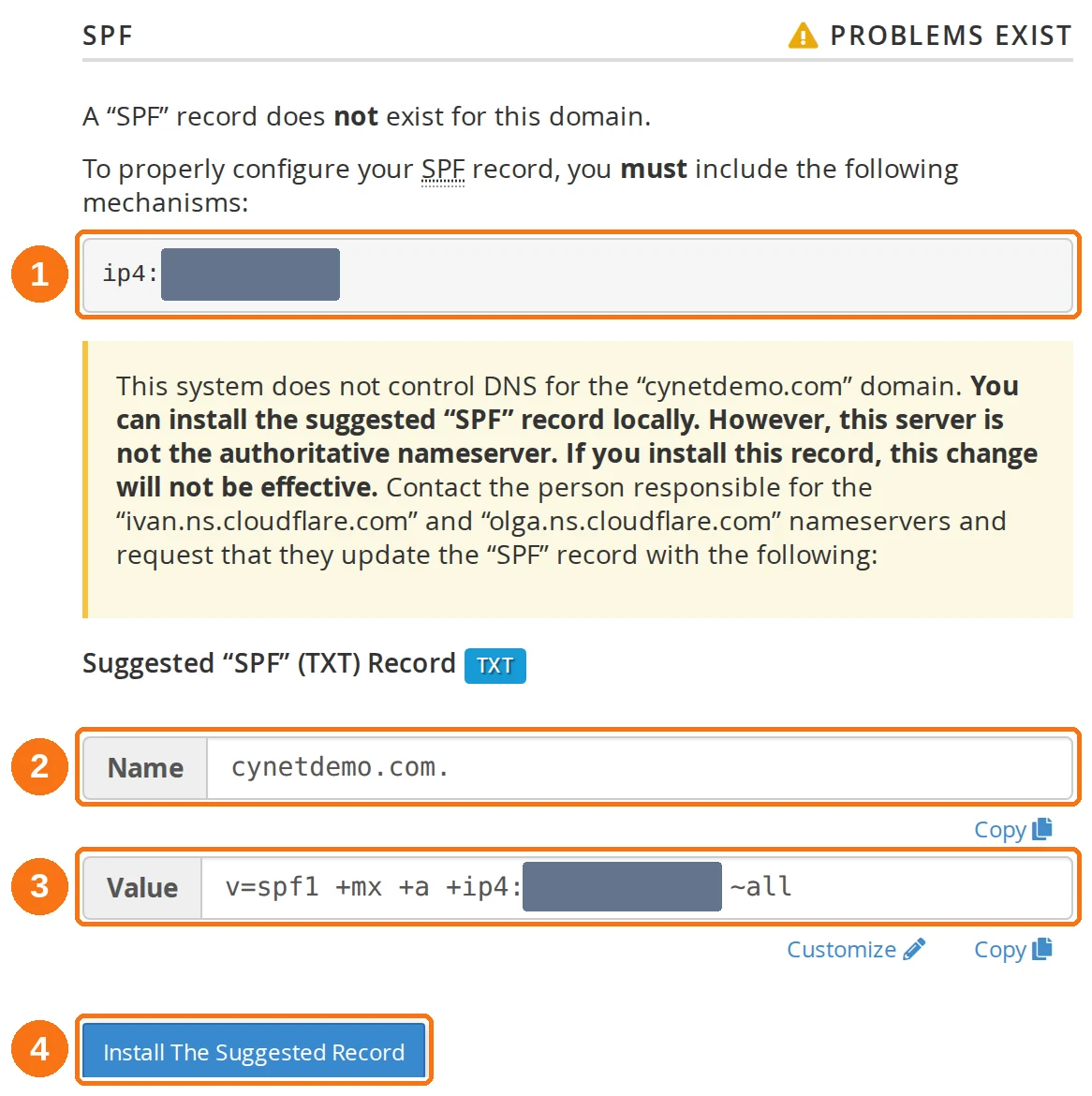
- The mechanism your record has to contain —
ip4:followed by your server's address. It is greyed out in the screenshot above; on your own screen it shows the real one. - Name — your domain, with a trailing dot.
- Value — the finished record, in the form
v=spf1 +mx +a +ip4:YOUR_SERVER_IP ~all. - Install The Suggested Record — same caveat as DKIM.
Why "Install The Suggested Record" will not save you
When your DNS lives elsewhere, every panel carries the same warning, and it is worth reading rather than clicking past: cPanel will happily install the record locally, but states plainly that the change will not be effective, because this server is not the authoritative nameserver for your domain. Helpfully, it also names the nameservers that are — those tell you which provider the records actually have to go to.
Step 2: Add SPF Record
At your DNS provider, add a TXT record:
| Host | Type | Value |
|---|---|---|
| @ | TXT | v=spf1 +mx +a +ip4:YOUR_SERVER_IP ~all |
Replace YOUR_SERVER_IP with the actual value shown in cPanel's Email Deliverability → Manage.Step 3: Add DKIM Record
At your DNS provider, add a TXT record:
| Host | Type | Value |
|---|---|---|
| default._domainkey | TXT | (the full DKIM key from cPanel) |
The DKIM value is a long string. Copy-paste it exactly from cPanel — do not modify it.
Step 4: Wait for DNS Propagation
External DNS changes can take 1–24 hours to propagate. After propagation, test by sending an email to Gmail again.
Verifying Your Email Authentication
After applying the fix, verify everything is working:
Method 1: Send to Gmail
- Send an email to a Gmail address
- Open the email in Gmail
- Open the three-dot menu at the top right of the message and choose Show original
- Check the authentication results for SPF: PASS, DKIM: PASS and DMARC: PASS
Method 2: Use an Online Tool
Send a test email to mail-tester.com — it provides a score out of 10 and flags any authentication issues.
Prevention
To avoid this issue in the future:
- Don't modify SPF/DKIM records unless you know what you're doing — incorrect records break email authentication
- Check deliverability after DNS changes — Whenever you change nameservers or DNS, verify Email Deliverability in cPanel afterwards
- Set up DMARC — Email Deliverability counts a missing DMARC policy as a problem in its own right, and the default it suggests is a
_dmarcTXT record with the valuev=DMARC1; p=none;. That is enough to clear the warning; add a reporting address to it later if you want the aggregate reports. - Monitor bounce-backs — If you start seeing delivery failures, check Email Deliverability in cPanel immediately