
Email forwarding lets you automatically redirect incoming messages from one email address to another. This is useful if you want to manage all your emails from a single inbox like Gmail or Outlook.
A forwarder is not an email account. It is a rule that says "anything arriving for this address goes to that address instead" — which means you can forward an address that has no mailbox at all, and pay nothing in disk space for it.
Prerequisites
Before you begin, make sure you have:
- An active Cynet hosting account with email enabled
- Access to your cPanel dashboard
- The destination email address ready (e.g., [email protected])
Steps
Step 1: Log in to cPanel
Go to your Cynet client area and click cPanel Login under your active hosting plan, or navigate directly to yourdomain.com/cpanel.
Step 2: Find the Forwarders Tool
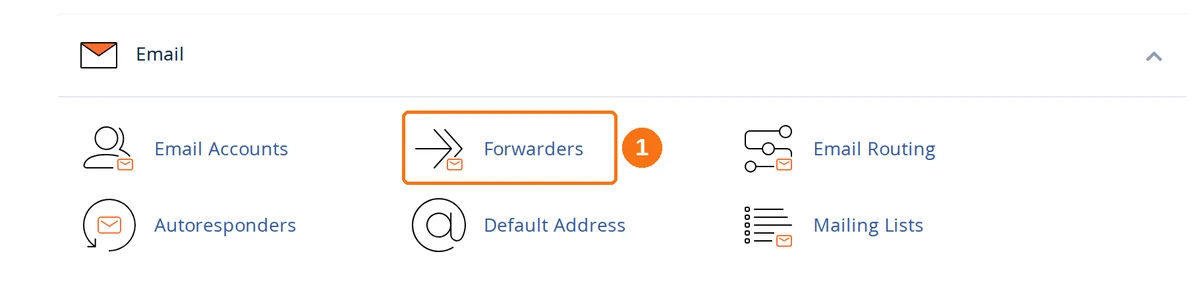
In cPanel, scroll down to the Email section and click on Forwarders.
Step 3: Click Add Forwarder
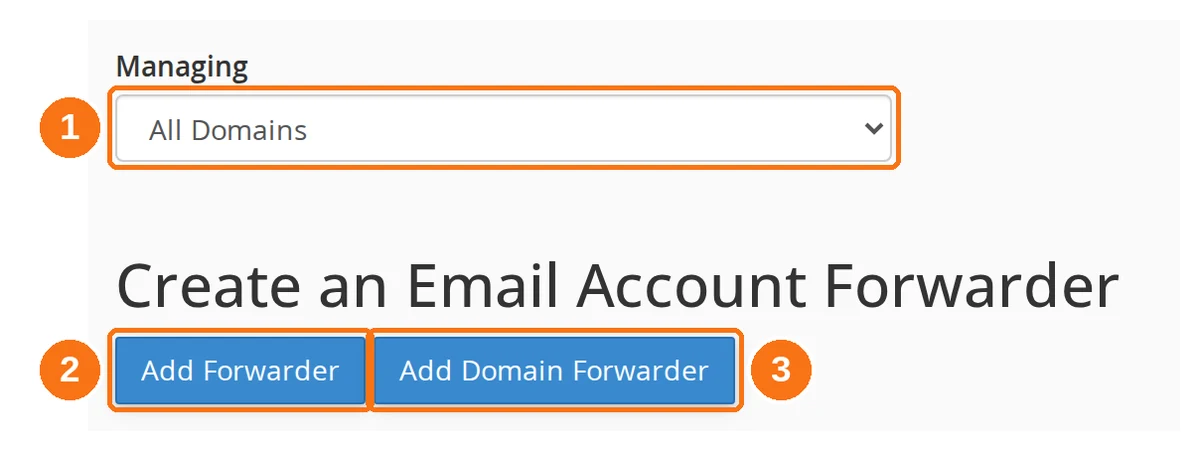
- Managing — leave this on All Domains unless you host several domains and want the list below filtered to one of them.
- Add Forwarder — forwards a single address. This is what you want.
- Add Domain Forwarder — forwards every address on a domain to another domain. See below.
Step 4: Fill In the Form
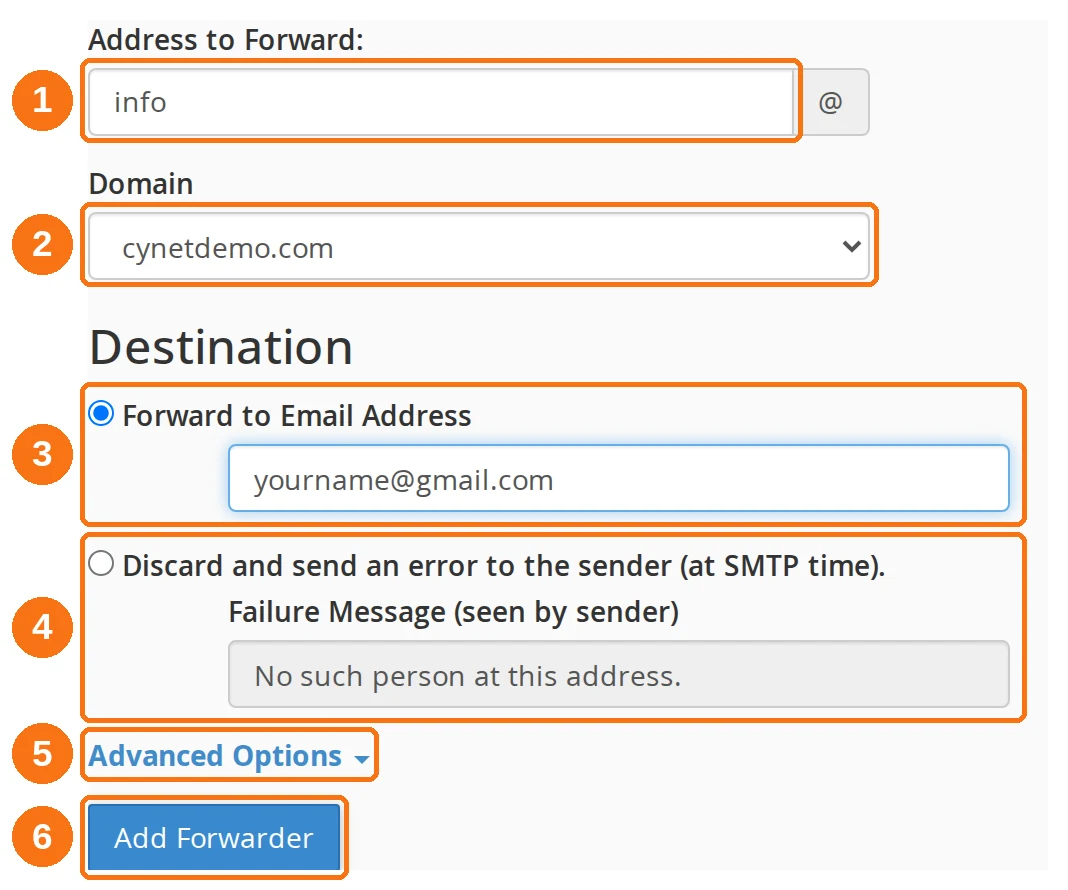
- Address to Forward — type only the part before the @ sign, such as
info. The @ is already printed at the end of the box. - Domain — pick the domain the address belongs to. It defaults to your main domain.
- Forward to Email Address — the default. Enter the full external address, such as
[email protected]. - Discard and send an error to the sender — the alternative. It rejects the mail during the SMTP conversation and returns the failure message shown underneath, which defaults to "No such person at this address."
- Advanced Options — three more destinations, collapsed by default. See below.
- Add Forwarder — click once to save.
Step 5: Test It
Send a test email to the address you just forwarded and check that it arrives at the destination inbox. New forwarders take effect immediately — there is no propagation delay.
Expected Result
Every message sent to the forwarded address is delivered to the destination address.
Whether a copy also stays on your hosting depends on something the Forwarders page does not tell you: a forwarder and an email account are separate things that happen to share an address.
- If no mailbox exists for the address, mail is forwarded and nothing is stored on your hosting. This is the cheap, common setup.
- If a mailbox does exist for the same address, cPanel delivers a copy to that mailbox and forwards it. You then have two copies to manage, and the local one still counts against your disk quota.
Advanced Options
The Advanced Options link on the Add Forwarder form opens three more destinations:
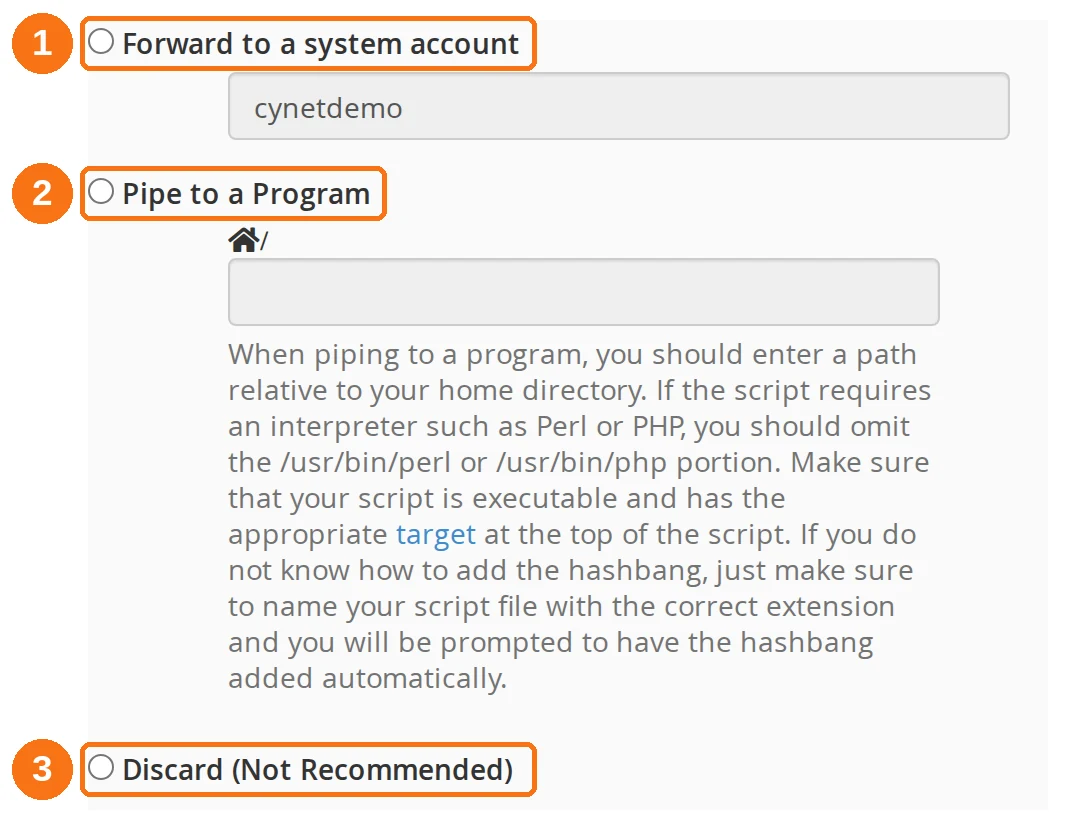
- Forward to a system account — delivers to your cPanel account's own mailbox rather than an email address. Rarely useful on shared hosting.
- Pipe to a Program — hands the message to a script in your home directory, for ticket systems and similar. The path is relative to your home directory, and the script must be executable.
- Discard (Not Recommended) — silently throws the message away with no bounce. The sender believes it was delivered. cPanel labels this "Not Recommended" for that reason; prefer the discard-with-error option on the main form.
Forwarding a Whole Domain
Add Domain Forwarder on the Forwarders page forwards every address on one domain to another domain, keeping the part before the @ sign. Point oldcompany.com at newcompany.com and [email protected] arrives at [email protected].
This is the right tool after a rebrand or a domain change. It is the wrong tool if you only want a handful of addresses redirected — use individual forwarders for those, because a domain forwarder catches mail for addresses that never existed, including the spam that gets sent to every common prefix.
It is also the wrong tool for sending a whole domain's mail to one address. A domain forwarder keeps the part before the @ sign, so it can only point a domain at another domain. To funnel everything into a single inbox, set the Default Address for the domain instead — cPanel says so on the Add Domain Forwarder page itself.
Managing Existing Forwarders
The Forwarders page lists everything currently configured, in two tables: Email Account Forwarders for individual addresses and Forward All Email for a Domain for domain forwarders.
Each account forwarder row has two actions:
- Trace — runs the address through the mail router and shows where a message to it would actually end up. Use this when forwarding is not working and you want to confirm the rule is what you think it is.
- Delete — removes the forwarder. cPanel asks for confirmation and names both addresses before it does.
Troubleshooting Tips
- Emails not arriving? Check the destination inbox's spam/junk folder first.
- Forwarding to Gmail? Gmail may take a few minutes to accept forwarded mail from a new source, and it applies its own spam filtering to it.
- Forwarded mail failing SPF checks? Forwarding breaks SPF, because the receiving server sees your Cynet server sending mail for a sender it does not own. Gmail and Outlook usually cope, but a strict DMARC policy on the sending domain can cause rejections. See Why Emails Fail DKIM or SPF in Gmail.
- Nothing arriving and no error? Check you did not use Discard (Not Recommended) under Advanced Options — it drops mail silently.
- Still receiving mail on the server too? An email account exists for that address as well. Delete the account if you only want forwarding.