
A subdomain is an extension of your main domain that functions as a separate website or section. For example, blog.yourdomain.com or shop.yourdomain.com. Subdomains are useful for organising different areas of your online presence without registering additional domains.
Common Uses for Subdomains
- blog.yourdomain.com — A separate blog or news section
- shop.yourdomain.com — An e-commerce storefront
- support.yourdomain.com — A help desk or knowledge base
- staging.yourdomain.com — A test/staging environment for development
- mail.yourdomain.com — Webmail access
Prerequisites
- An active Cynet hosting account
- A domain already added to your hosting
- Access to cPanel
Steps
Step 1: Log in to cPanel
Navigate to yourdomain.com/cpanel or log in via your Cynet client area.
Step 2: Open the Domains Tool
In the cPanel dashboard, scroll to the Domains section and click Domains.
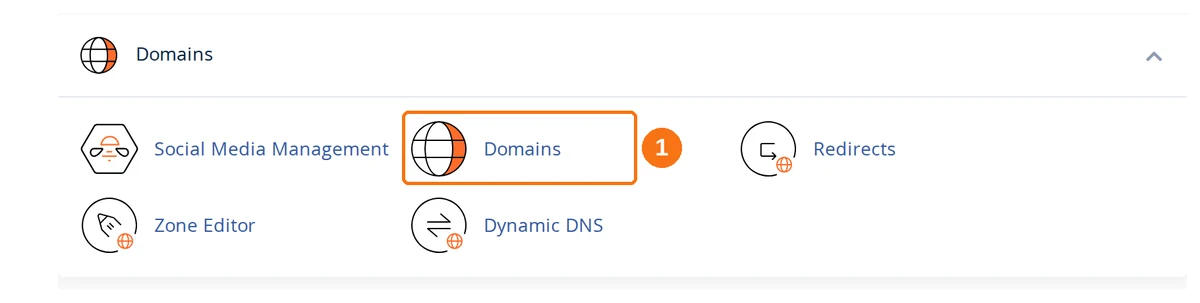
On older cPanel versions, look for Subdomains as a separate tool. On current cPanel there is no separate Subdomains page — subdomains, addon domains and aliases are all created from this one screen.
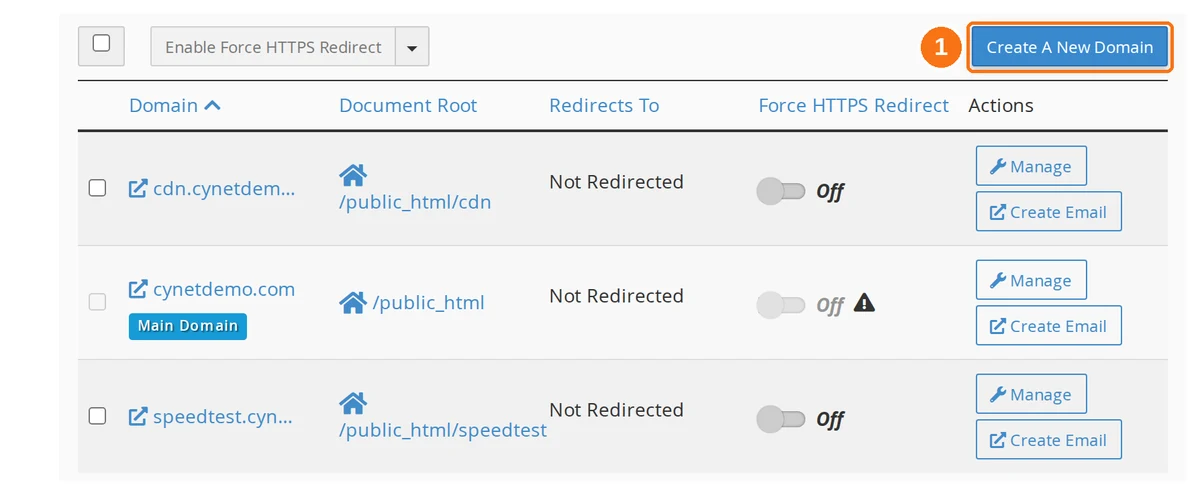
Step 3: Click Create A New Domain
The button sits above the list of domains already on your account.
Step 4: Fill In the Form
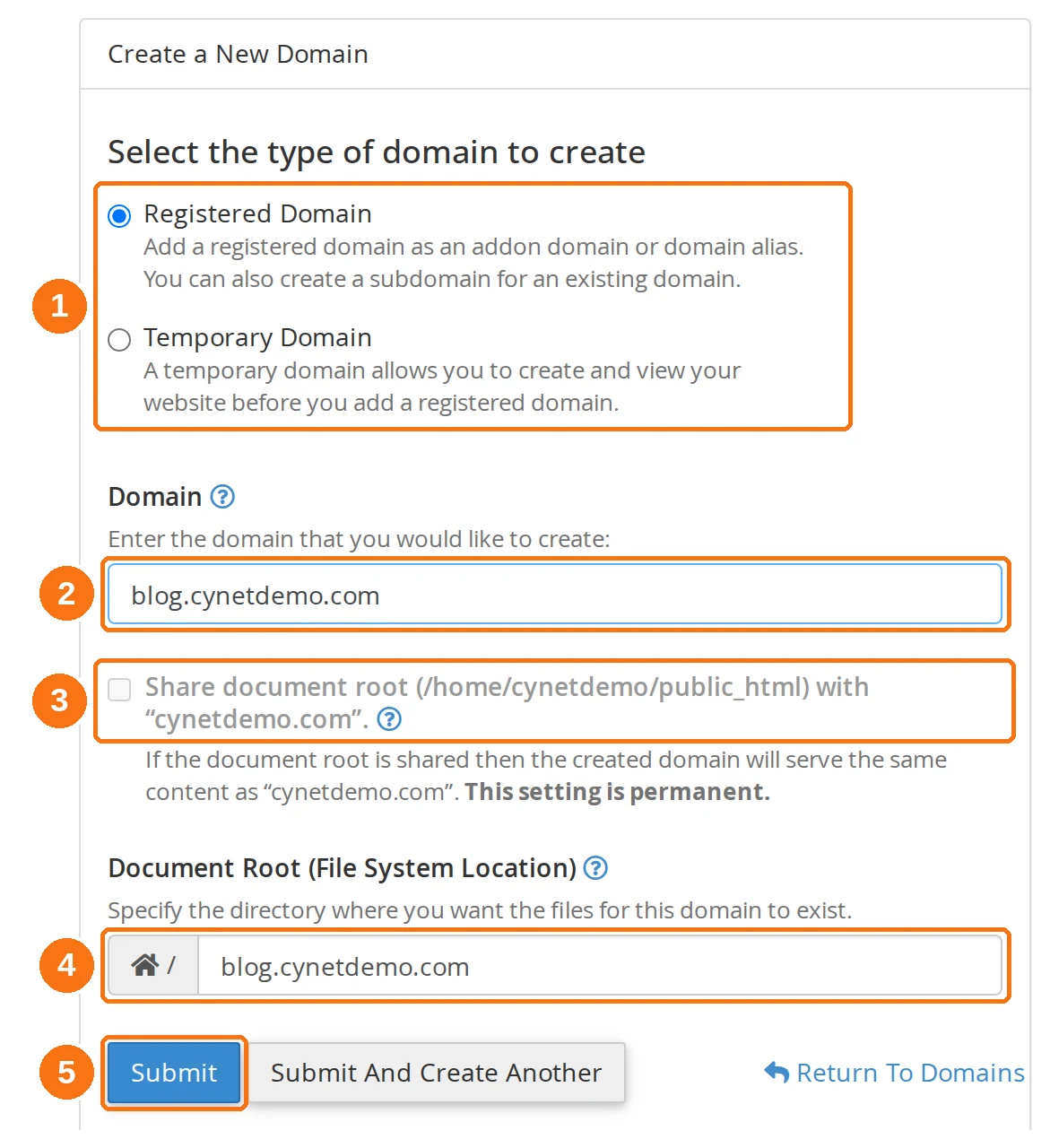
- Select the type of domain to create — leave this on Registered Domain. Despite the name, that is the option that creates a subdomain of a domain you already host. Temporary Domain creates a throwaway preview address on the server's own hostname, for viewing a site before its real domain points at the hosting — not what you want here.
- Domain — type the full subdomain, including your domain name:
blog.yourdomain.com. cPanel works out on its own thatblogis a subdomain ofyourdomain.com. - Share document root — leave this unticked. See below.
- Document Root — cPanel fills this in for you as soon as you finish typing the domain, and the default is not inside
public_html. See below. - Submit — click it once. Submit And Create Another does the same thing but keeps the form open for the next subdomain.
Leave "Share document root" unticked
Ticking it points the subdomain at the same folder as your main site, so blog.yourdomain.com would serve exactly the same pages as yourdomain.com. cPanel warns that this setting is permanent — you cannot unshare it afterwards, only delete the domain and create it again.
The document root default is not inside public_html
The house icon in front of the field is your home directory, so the pre-filled blog.yourdomain.com means a new folder sitting beside public_html:
/home/username/blog.yourdomain.com
That is deliberate — it keeps the subdomain's files out of your main site — but it catches out anyone who goes looking for the folder inside public_html later.
If you would rather keep everything under public_html, overwrite the field with public_html/blog before submitting. Decide now: changing the document root afterwards means moving files by hand.
Step 5: What Happens Next
On submit, cPanel:
- Creates the document root directory automatically
- Adds the necessary DNS records
- Makes the subdomain accessible (may take a few minutes)
Uploading Content to Your Subdomain
After creating the subdomain, upload your website files:
Via File Manager
- Open cPanel → File Manager
- Navigate to the document root you set (e.g.,
blog.yourdomain.comin your home directory, or/public_html/blogif you changed it) - Upload your files or create an
index.html/index.php
Via FTP
- Connect using your FTP client (FileZilla, WinSCP, etc.)
- Navigate to the subdomain's document root
- Upload your files
Install a CMS
You can install WordPress or other applications on a subdomain:
- Open cPanel → Softaculous Apps Installer
- Click WordPress → Install
- In the Choose Domain dropdown, select your subdomain
- Complete the installation
Managing Subdomains
View All Subdomains
Go to cPanel → Domains to see all your domains and subdomains listed together.
Delete a Subdomain
- Go to cPanel → Domains
- Find the subdomain in the list
- Click Manage → Remove Domain
Warning: Deleting a subdomain does not delete the files in its document root. You'll need to manually remove the folder via File Manager if you want to free up disk space.
Redirect a Subdomain
To redirect a subdomain to another URL:
- Go to cPanel → Redirects
- Select your subdomain from the dropdown
- Enter the destination URL
- Choose redirect type (301 Permanent or 302 Temporary)
- Click Add
DNS and Propagation
When you create a subdomain in cPanel, the DNS A record is added automatically. If your domain uses Cynet nameservers (ns1.cynethost.com through ns4.cynethost.com), the subdomain should resolve within minutes.
If your domain uses external nameservers, you'll need to manually add an A record for the subdomain at your DNS provider:
| Host | Type | Value |
|---|---|---|
| blog | A | Your server's IP address |
Troubleshooting
Subdomain shows "Index of /" or a blank page
The document root is empty. Upload an index.html or install a CMS to the subdomain folder.
Subdomain shows the main website
Either Share document root was ticked when you created it, or the document root was set to /public_html instead of a subdomain-specific folder. Check the Document Root column in cPanel → Domains. A shared document root cannot be undone — remove the domain and create it again with the box unticked.
Can't find the subdomain's folder in File Manager
By default it is not in public_html. Look in your home directory for a folder named after the subdomain — the same path shown in the Document Root column of cPanel → Domains.
Subdomain not resolving
- If using Cynet nameservers, wait 5–10 minutes for DNS to propagate
- If using external nameservers, add the A record manually at your DNS provider
- Clear your browser cache or try in an incognito window