
Different websites and applications require different PHP versions to run correctly. If your website displays errors after an update, or if you need to run a newer (or older) version of PHP, you can change it directly from cPanel.
When Should You Change PHP Version?
- After a WordPress or plugin update that requires a newer PHP version
- Website errors like "Parse error", "Fatal error", or blank white screens caused by PHP incompatibility
- Performance improvement — Newer PHP versions (8.x) are significantly faster than older ones
- Security — Older PHP versions (7.x and below) no longer receive security patches
- Application requirements — A new CMS or framework specifies a minimum PHP version
Recommended PHP Versions
| Use Case | Recommended Version |
|---|---|
| WordPress (latest) | PHP 8.3 or 8.4 |
| Joomla (latest) | PHP 8.2 or 8.3 |
| Laravel (latest) | PHP 8.3 or 8.4 |
| Legacy/older websites | PHP 8.1 (minimum) |
Tip: Always use the latest stable PHP version that your website supports. Newer versions are faster and more secure.
ea-php vs alt-php
Cynet servers list each version twice, for example ea-php83 and alt-php83:
ea-php— EasyApache builds, the cPanel standard. Pick these unless you have a reason not to.alt-php— CloudLinux builds, which are the ones the PHP Selector in Method 2 can add and remove extensions for.
Method 1: MultiPHP Manager (Recommended)
Step 1: Log in to cPanel
Navigate to yourdomain.com/cpanel or log in via the Cynet client area at manage.cynet.com.my.
Step 2: Open MultiPHP Manager
In the cPanel dashboard, scroll to the Software section and click MultiPHP Manager (1).
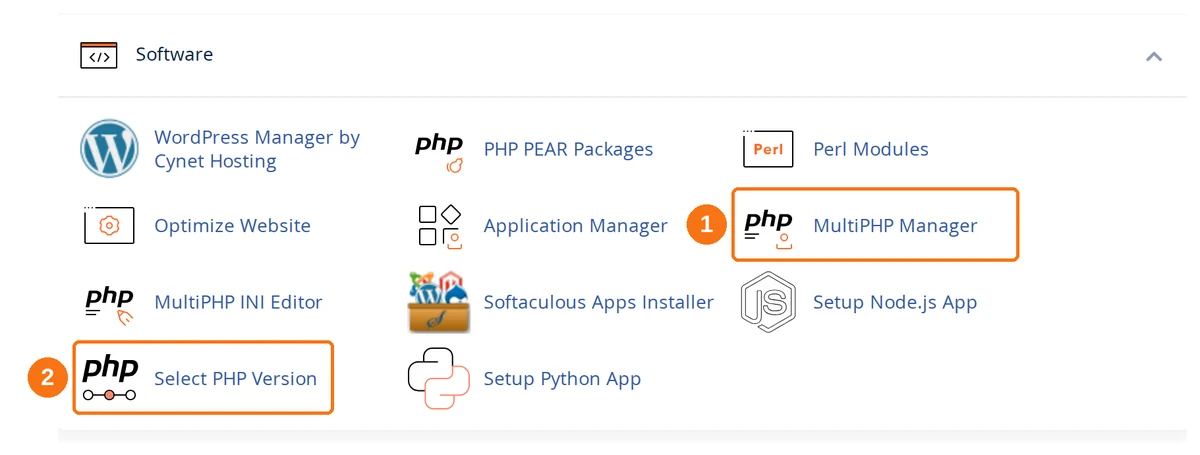
Select PHP Version (2) is the CloudLinux PHP Selector covered in Method 2. Use MultiPHP Manager to change the version; use the Selector when you also need to turn PHP extensions on or off.
Step 3: Select Your Domain and Version
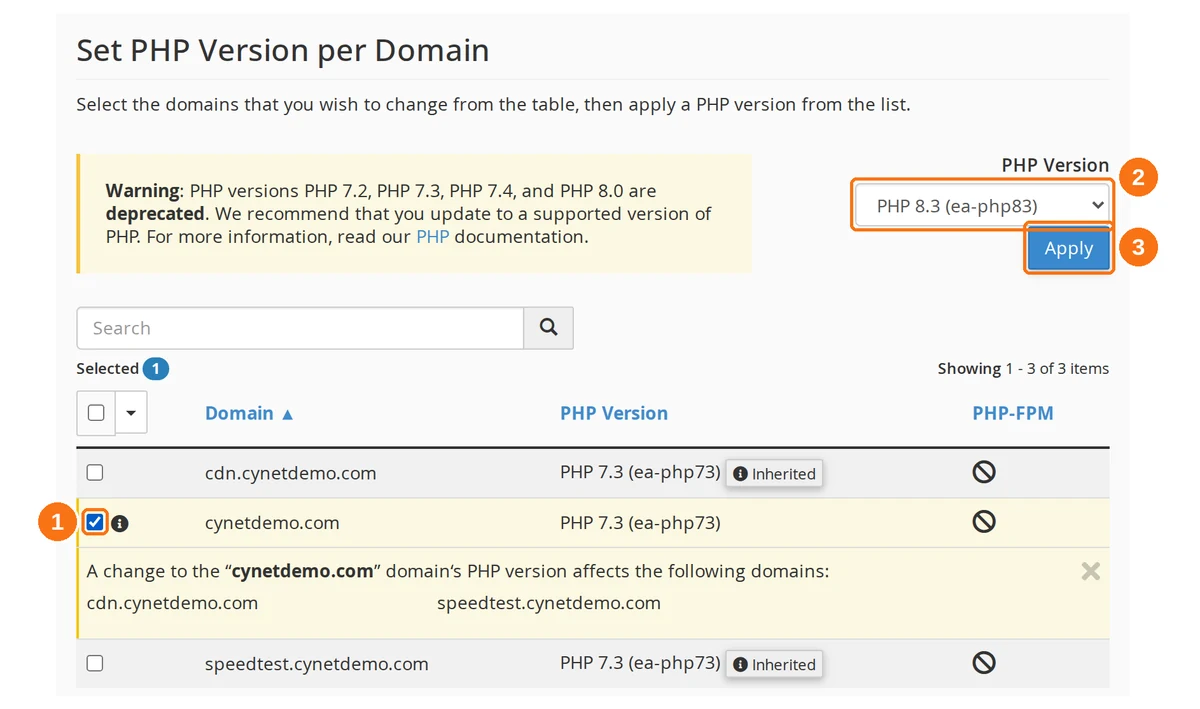
- Tick the box next to the domain(s) you want to change. The table lists every domain and subdomain on the account
- From the PHP Version dropdown at the top right, select the version you want (e.g.,
ea-php83for PHP 8.3) - Click Apply
Three things on this screen are worth reading before you click Apply:
- The deprecation warning. cPanel banners PHP 7.2, 7.3, 7.4 and 8.0 as deprecated. If your domain is on one of those, moving off it is the point of this exercise, not an optional extra.
- The
inheritvalue and the "Inherited" badge. A domain showing Inherited has no PHP version of its own — it follows the server's System PHP Version, shown in the section above the table. Setting an explicit version breaks that link, and the domain stops tracking the server default; to put it back, pickinheritfrom the same dropdown. - Subdomains follow the main domain. Tick your main domain and cPanel expands a notice listing the subdomains the change will also hit — every one still set to inherit. If you only want to move one site, set that domain explicitly instead.
Method 2: PHP Selector (CloudLinux)
Some Cynet hosting plans use CloudLinux's PHP Selector, which offers additional control over PHP extensions and settings.
Step 1: Open PHP Selector
In cPanel, scroll to the Software section and click Select PHP Version.
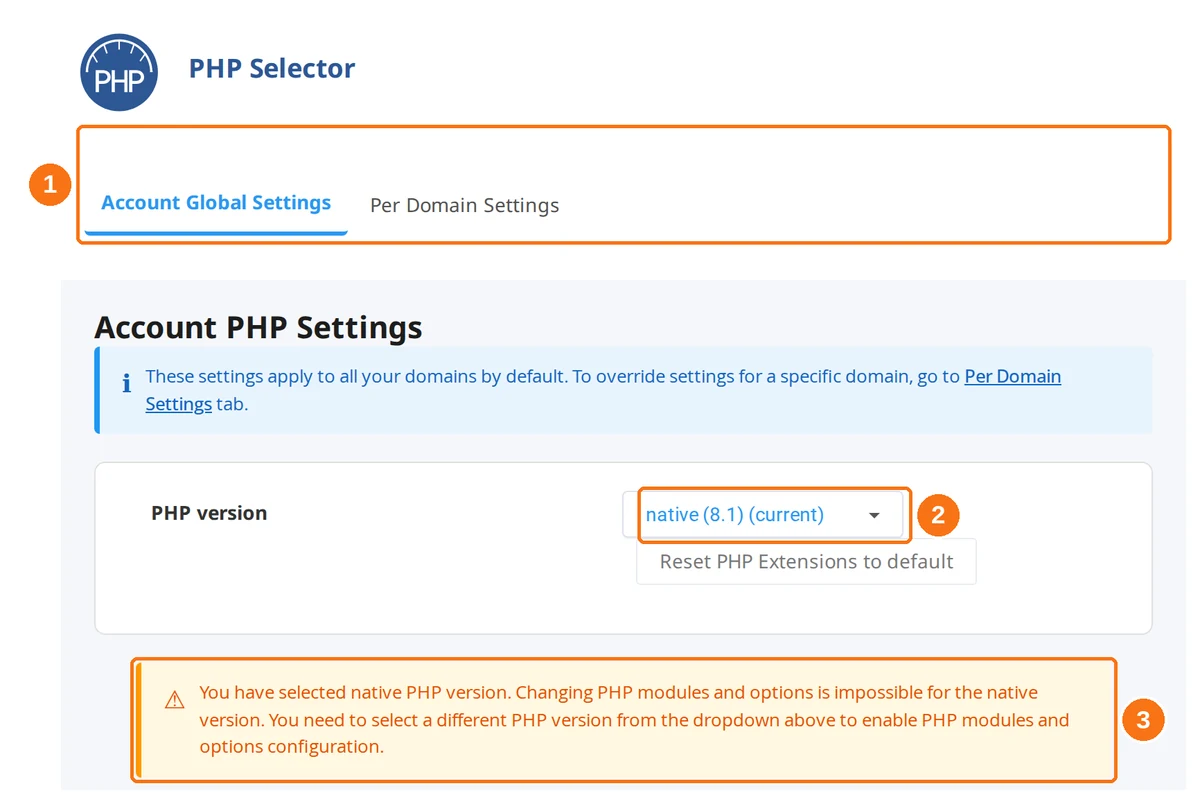
Step 2: Change the PHP Version
- The Selector opens on Account Global Settings (1), which applies to every domain on the account. The Per Domain Settings tab next to it overrides that for one domain at a time
- Under Account PHP Settings, open the PHP version dropdown (2) and pick a version
Step 3: Move Off the Native Version First
Out of the box the dropdown reads native, meaning the account is following the server's own PHP build rather than one of CloudLinux's. While it says native, the Selector shows the warning above (3): PHP extensions and options cannot be changed at all.
So if your reason for opening the Selector is extensions or php.ini settings, changing the version away from native is not optional — it is step one. Pick the alt-php version you want, and the extension and options controls appear underneath.
Your site keeps running on native PHP until you change it, and the version shown as (current) is the one in force.
Step 4: Manage PHP Extensions (Optional)
Once the version is off native, the Selector lists the available PHP extensions with tick boxes. Check or uncheck them as needed. Common ones:
- ☑ mysqli — Required for database connections
- ☑ curl — Required for API calls and remote requests
- ☑ mbstring — Required for multibyte string handling
- ☑ zip — Required for plugin/theme installations
- ☑ gd or imagick — Required for image processing
- ☑ intl — Required by some frameworks and CMS
Step 5: Adjust PHP Settings (Optional)
The Selector's PHP options let you adjust these settings:
| Setting | Default | Common Adjustment |
|---|---|---|
memory_limit | 256M | Increase to 512M for resource-heavy sites |
max_execution_time | 30 | Increase to 300 for long-running scripts |
upload_max_filesize | 64M | Increase for large file uploads |
post_max_size | 64M | Should be equal to or larger than upload_max_filesize |
max_input_vars | 1000 | Increase to 5000 for complex forms or WooCommerce |
native.
Verifying the PHP Version
Method 1: cPanel
Go back to MultiPHP Manager — your domain should show the updated version.
Method 2: PHP Info File
- Go to cPanel → File Manager →
/public_html/ - Create a new file called
phpinfo.phpwith this content:
<?php phpinfo(); ?>
- Visit
yourdomain.com/phpinfo.phpin your browser - The page displays your active PHP version and all settings
- Delete the file after checking — leaving it accessible is a security risk
Method 3: WordPress Dashboard
In WordPress admin, go to Tools → Site Health → Info → Server — the PHP version is listed there.
Troubleshooting
Website shows errors after changing PHP version
- A plugin, theme, or your application may not be compatible with the new version
- Quick fix: Revert to the previous PHP version in MultiPHP Manager
- Proper fix: Update the incompatible plugin/theme to a version that supports the new PHP, then switch again
"500 Internal Server Error" after change
- Check cPanel → Metrics → Errors for the specific error
- The
.htaccessfile may contain PHP directives incompatible with the new version - Try renaming
.htaccesstemporarily to test
WordPress white screen after PHP change
- A plugin is likely incompatible. Deactivate all plugins:
/wp-content/plugins to /wp-content/plugins_disabled- Switch to a default theme to rule out theme incompatibility
- Reactivate plugins one by one to find the culprit
PHP extensions missing after version change
When switching PHP versions, the enabled extensions may reset to defaults. Go to Select PHP Version → re-enable any required extensions (especially mysqli, curl, mbstring, zip, gd). If the extension list is not there at all, the version is still set to native — see Step 3 above.
A subdomain changed PHP version on its own
It did not have one of its own. Subdomains shown as Inherited in MultiPHP Manager follow whatever the parent is set to, so changing the main domain moves them too. Set the subdomain's version explicitly if it needs to differ.
Changes not taking effect
- Clear your browser cache and try in an incognito window
- If using a caching plugin (LiteSpeed Cache, WP Super Cache), purge the cache
- Check that you changed the PHP version for the correct domain (not a subdomain or addon domain)