
If emails from a trusted sender keep ending up in your Spam or Junk folder, you can whitelist their address so the server always delivers their messages to your inbox. There are two places to do this: the SpamAssassin spam filter in cPanel (server-level, applies before delivery) and Roundcube Webmail (account-level, manages your personal contacts).
Method 1: Whitelist in SpamAssassin (cPanel)
This is the most effective method because it works at the server level — emails from whitelisted addresses bypass spam scoring entirely before they reach any mailbox.
Step 1: Log in to cPanel
Navigate to yourdomain.com/cpanel or log in via the Cynet client area at manage.cynet.com.my.
Step 2: Open Spam Filters
In the cPanel dashboard, scroll to the Email section and click Spam Filters.
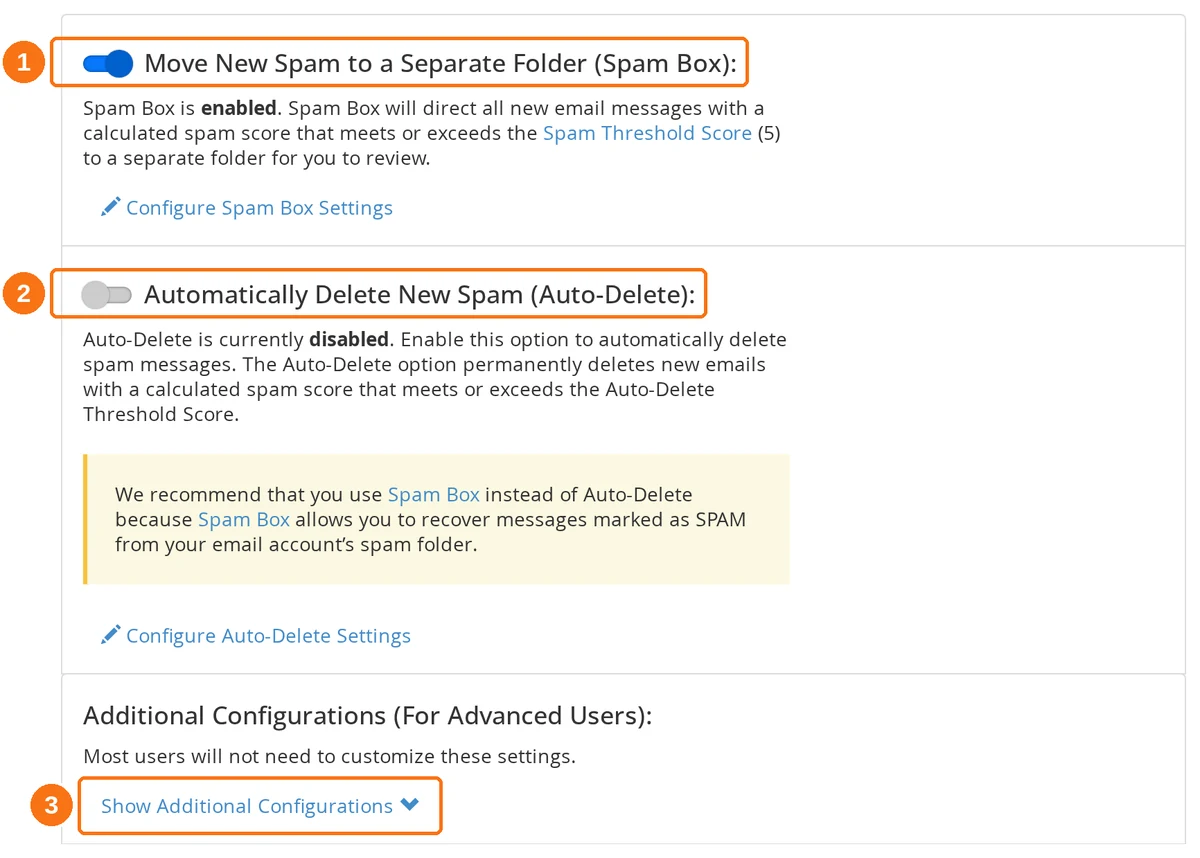
- Spam Box — on by default, which is why suspected spam lands in a Spam folder rather than vanishing.
- Auto-Delete — off by default. Leave it off: it deletes suspected spam outright, and a whitelist cannot rescue a message that no longer exists.
- Show Additional Configurations — the whitelist lives behind this button.
Note: The first switch, "Process New Emails and Mark them as Spam", is locked. The page says so in as many words — your hosting provider enables the feature and you cannot disable it. Spam scoring always runs; the whitelist is how you make exceptions to it.
Step 3: Show Additional Configurations
Click Show Additional Configurations. Three blocks appear.
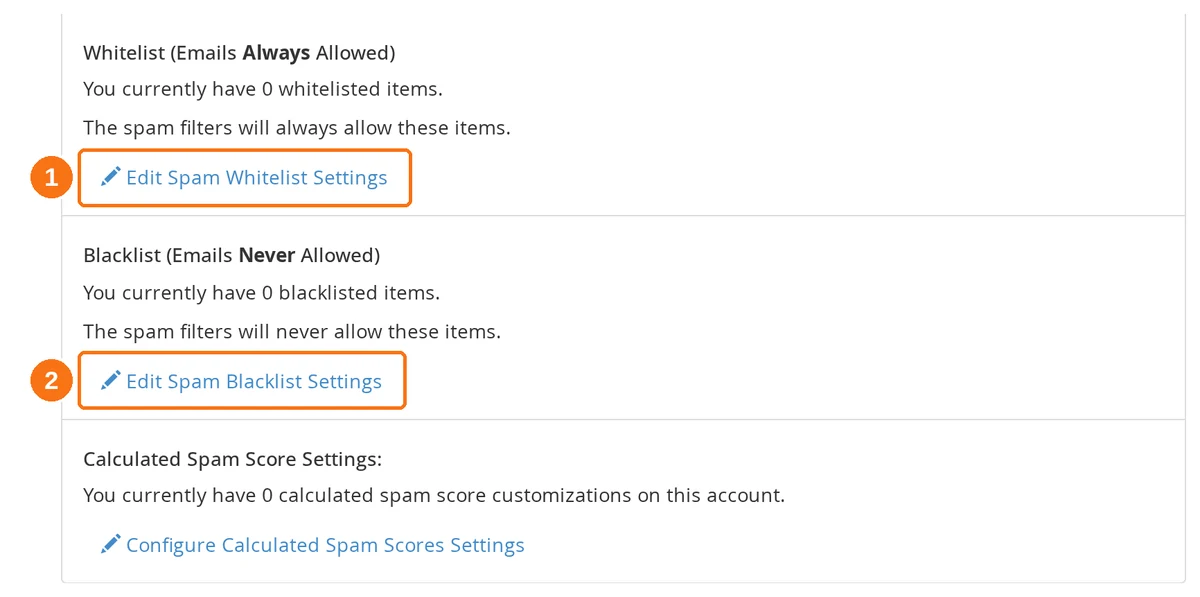
- Edit Spam Whitelist Settings — senders the filter will always allow. This is the one you want.
- Edit Spam Blacklist Settings — the opposite: senders it will never allow.
Step 4: Add to Whitelist
Click Edit Spam Whitelist Settings. The editor is a list of rows rather than a free-text box, and it starts empty — there is no field to type in until you add a row.
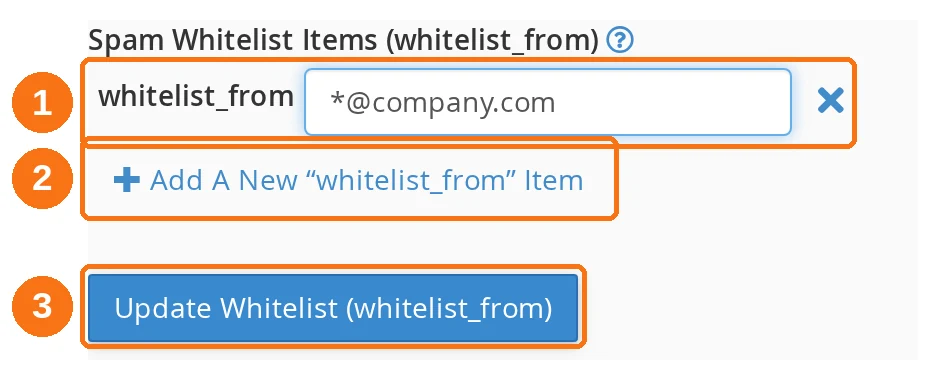
- A
whitelist_fromrow. Enter one address or pattern per row. - Add A New "whitelistfrom" Item — adds another empty row. Use this for each extra sender.
- Update Whitelist (whitelistfrom) — saves. Nothing is stored until you click it.
| Format | Example | Effect |
|---|---|---|
| Specific address | [name]@company.com | Whitelists only that address |
| Entire domain | *@company.com | Whitelists all addresses from that domain |
| Subdomain | *@mail.company.com | Whitelists all addresses from that subdomain |
Step 5: Verify
Ask the sender to send you a test email. It should now arrive in your inbox instead of the Spam/Junk folder.
Important Notes
- SpamAssassin whitelist applies to all email accounts on your domain
- You can add as many senders as you need, but each one needs its own row — click Add A New "whitelistfrom" Item again for each
- The whitelist overrides the spam score, so whitelisted emails will never be flagged as spam regardless of their content
- This does not override server-level security blocks (e.g., blacklisted IPs or malware-detected emails)
Method 2: Whitelist in Roundcube Webmail
Adding a sender to your Roundcube address book ensures their emails are treated as trusted. This method works on a per-account basis — each email user manages their own contacts.
Step 1: Log in to Roundcube Webmail
- Go to
yourdomain.com/webmailin your browser - Enter your full email address and password
- Select Roundcube as your webmail application
Step 2: Open Contacts
Click the Contacts icon in the left sidebar (or from the top navigation menu).
Step 3: Add the Sender as a Contact
Option A: Add From an Existing Email
If you already have an email from the sender (even in the Spam folder):
- Open the email
- Right-click the sender's email address (or click the sender name)
- Select Add to Address Book or Save to Contacts
- Confirm and save
Option B: Add Manually
- In the Contacts section, click the Create New Contact button (+ icon)
- Fill in Display Name with the sender's name, and Email with their full address
- Click Save
Step 4: Move Existing Emails to Inbox
If the sender's previous emails are in your Spam/Junk folder:
- Go to the Junk or Spam folder
- Select the emails from the whitelisted sender
- Click Move to → Inbox (or drag and drop them to the Inbox folder)
- Right-click and select Mark → As Not Spam if the option is available
Step 5: Create a Filter Rule (Optional — Advanced)
For extra reliability, create a Roundcube filter rule to always move emails from the sender to your inbox:
- In Roundcube, go to Settings (gear icon) → Filters
- Click Create (+ icon) to add a new filter
- Name the filter, set the condition to "From" → "contains" →
company.com, and the action to "Move message to" → Inbox - Click Save
Which Method Should I Use?
| Method | Scope | Best For |
|---|---|---|
| SpamAssassin (cPanel) | All email accounts on the domain | Domain administrators who want to whitelist a sender for the entire organisation |
| Roundcube (Webmail) | Individual email account only | Individual users who want to manage their own trusted senders |
Common Scenarios
Whitelisting a business partner
You regularly email with a client or supplier, but their messages keep going to spam:
- Whitelist
*@theircompany.comin SpamAssassin (covers the whole domain) - Add their individual contacts in Roundcube
Whitelisting a newsletter or service
Transactional emails from services like invoicing platforms, CRMs, or booking systems are being flagged:
- Whitelist the service's sending domain in SpamAssassin (e.g.,
*@notifications.service.com) - Check the email headers to find the actual sending address — it may differ from the display address
Whitelisting your own domain
Emails between colleagues on the same domain are going to spam:
- Whitelist
*@yourdomain.comin SpamAssassin - This ensures internal emails are never flagged
Troubleshooting
Emails still going to spam after whitelisting
- Verify the exact sender address: Check the email headers — the "From" address shown may differ from the actual sending address. Whitelist the actual sending address.
- Check for typos: Ensure the whitelisted address is spelled correctly
- Clear spam folder: Move existing emails from Spam to Inbox and mark as "Not Spam"
- Check auto-delete: Auto-Delete is off by default, but if someone has switched it on, mail can be deleted before you ever see it. Check the Spam Filters overview (see Adjust Spam Filter Sensitivity)
- Email client rules: Your desktop email client (Outlook, Thunderbird) may have its own spam/junk filter. Check the client's whitelist settings as well
Whitelisted sender's emails bounce
Whitelisting does not override server-level rejections. If an email bounces (as opposed to going to spam), the issue is at the mail server level — contact Cynet support for assistance.
Too many senders to whitelist
If you're whitelisting many individual addresses, consider:
- Raising the SpamAssassin threshold score instead (see Adjust Spam Filter Sensitivity)
- Whitelisting entire domains (
*@domain.com) rather than individual addresses