
When sending an email, you may encounter an error message indicating that your email account has been placed on an outgoing mail hold. This means the account has been temporarily suspended from sending emails.
Symptoms
You see the following error when trying to send email:
Sender [your-address]@yourdomain.com has an outgoing mail hold.
Message will be reattempted later.
Outgoing emails are queued but not delivered. Incoming emails continue to work normally.
Causes
This error occurs when your email account or domain has exceeded the server's email sending limit. Cynet shared hosting enforces a sending limit to prevent spam abuse and ensure fair resource usage:
| Limit | Value |
|---|---|
| Maximum emails per hour per domain | 200 |
- Sending bulk newsletters or marketing emails from your hosting email
- Auto-responders or loops — An autoresponder replying to automated emails, creating a send loop
- Compromised account — A hacker gained access to your email password and is using it to send spam
- Website contact forms — A website form sending excessive notification emails (e.g., due to spam form submissions)
- Mailing list scripts — PHP scripts or CMS plugins sending large volumes of email
Solution
Step 1: Log in to cPanel
Navigate to yourdomain.com/cpanel or log in via the Cynet client area.
Step 2: Open Email Accounts
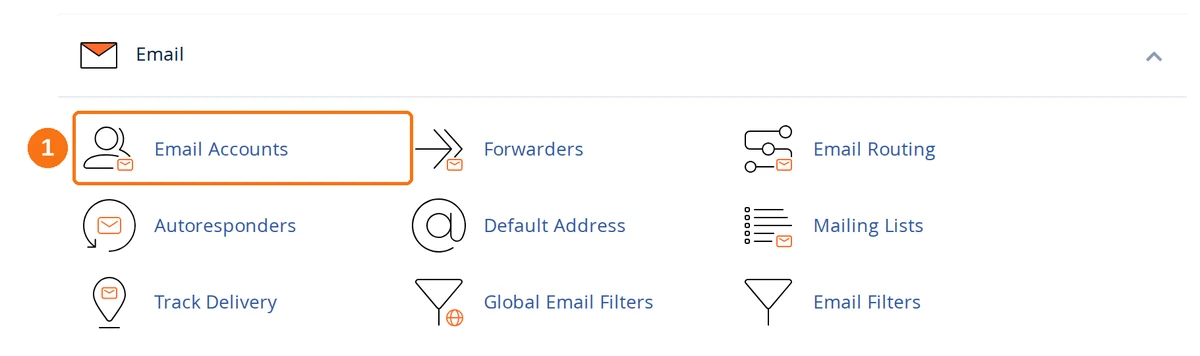
In the cPanel dashboard, go to the Email section and click Email Accounts.
Step 3: Select the Affected Account
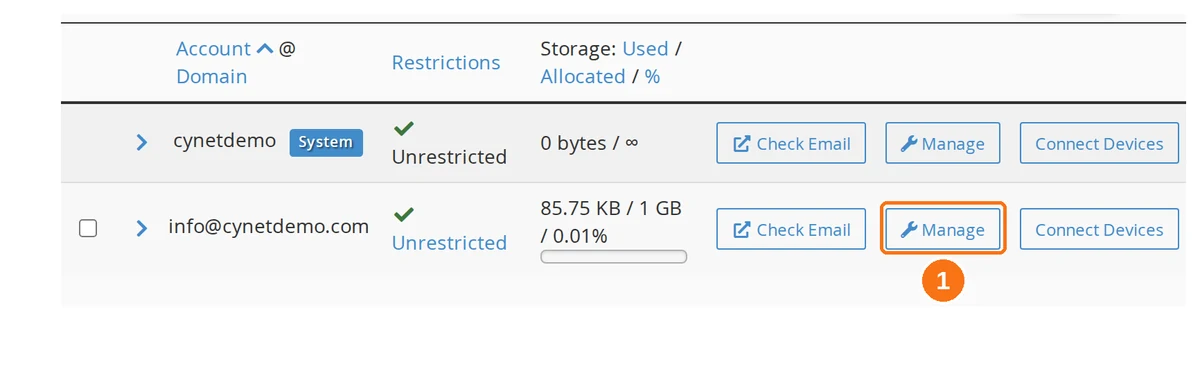
The held account is easy to spot in the list. Every account has a Restrictions column, and where the others read Unrestricted with a green tick, a held account reads Restricted with a yellow warning triangle. Click Restricted, or the Manage button on the same row — both open that account's settings.
Step 4: Release the Hold
Scroll down to the Restrictions section. Under Sending Outgoing Email, Hold is selected.
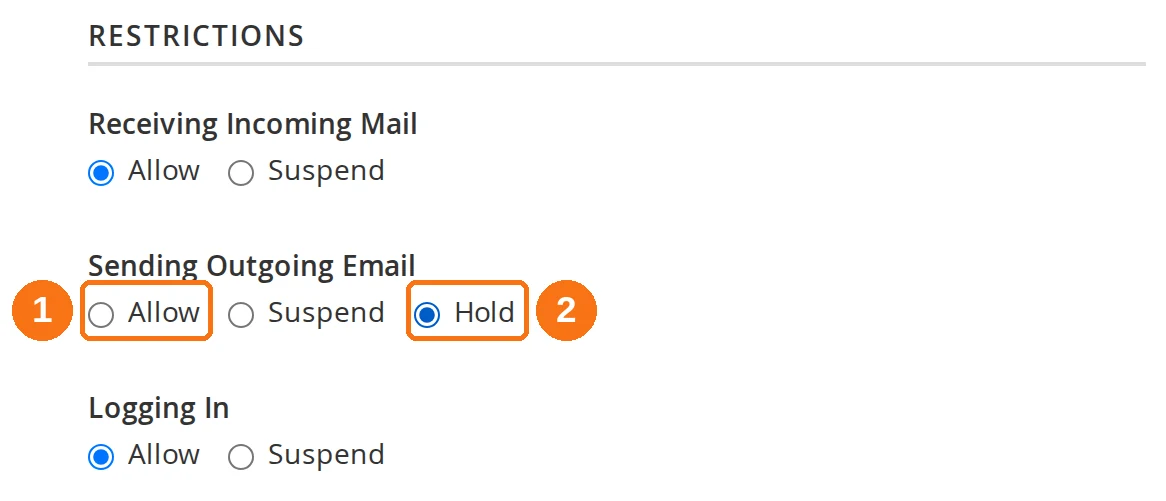
- Allow — select this to release the hold.
- Hold — what a held account shows. Outgoing messages wait in the server's mail queue instead of being delivered. Suspend, between the two, refuses outgoing mail outright rather than queuing it.
Delete the held messages first if the account was hacked
When messages are waiting in the queue, a checkbox appears directly under those options: Delete N messages from the mail queue, with N the number held. Releasing a hold sends everything that was held. If you did not send those messages yourself — if the account was compromised, or a form was abused — that queue is the spam, and Allow on its own delivers all of it.
Tick the checkbox, then select Allow and click Update Email Settings. cPanel deletes the held messages first and releases the hold afterwards. If the line reads The mail queue does not contain any messages on hold. instead, there is nothing to delete.
Warning: Do this after you have changed the password — see Check for a Compromised Account below. Releasing the hold on an account the attacker can still log in to puts it straight back to sending spam — and spam from one hacked mailbox is how a shared server's IP ends up on blocklists such as Microsoft's. See Email to Hotmail/Outlook Blocked.
Step 5: Test
Send a test email to confirm outgoing mail is working again.
Investigate the Root Cause
Before resuming normal email use, determine why the limit was exceeded to prevent it from happening again.
Check for a Compromised Account
If you didn't send 200+ emails intentionally, your account may be compromised:
- Change the email password immediately — cPanel → Email Accounts → Manage → change the password
- Review your Sent folder via webmail (
yourdomain.com/webmail) — look for emails you didn't send - Check email forwarders — cPanel → Forwarders — ensure no unauthorized forwarding rules were added
- Check autoresponders — cPanel → Autoresponders — disable any unexpected autoresponders
- Scan your computer for malware — keyloggers may have captured your password
Check Website Forms
If your website has contact forms that send email notifications:
- Add CAPTCHA (e.g., Google reCAPTCHA) to all forms to block spam submissions
- Rate-limit submissions — Limit how many times a form can be submitted per IP per hour
- Review your email logs — cPanel → Track Delivery — to see what emails were sent and to whom. See How to Trace Email Delivery in cPanel for how to read the report.
Check for Email Loops
An email loop occurs when two autoresponders or forwarders keep replying to each other:
- Go to cPanel → Autoresponders — disable any that may be responding to automated emails
- Go to cPanel → Forwarders — check for circular forwarding rules
- Check if an email forwarder is sending to an address that auto-replies back to you
Prevention
- Don't use hosting email for bulk sending — Use a dedicated email marketing service (Mailchimp, Brevo, etc.) for newsletters and mass emails
- Use strong, unique passwords — Prevent account compromise
- Add CAPTCHA to forms — Stop spam bots from triggering hundreds of notification emails
- Monitor your sending volume — Keep well below 200 emails/hour
- Disable unnecessary autoresponders — Only use autoresponders when genuinely needed
- Review cPanel → Track Delivery regularly — Spot unusual sending patterns early