
A cron job runs a command on a schedule — every five minutes, every night at 3 a.m., on the first of each month — without anyone visiting your website. Typical uses are running WordPress's scheduled tasks reliably, a Laravel or WHMCS scheduler, nightly clean-up scripts, and sending reports.
Creating the job in cPanel takes a minute. The part that trips people up is the PHP path in the command, because Cynet's servers run cPanel on CloudLinux, with two families of PHP builds and several ways to call them that do not behave the same. This guide gives you the path to use and explains why.
The PHP Path to Use on Cynet Servers
Use the full path to the PHP version your website runs. Find your site's version in cPanel → Software → MultiPHP Manager (see How to Change Your PHP Version), then pick the matching path:
| Your site's version in MultiPHP Manager | PHP path for your cron command |
|---|---|
| ea-php84 | /opt/cpanel/ea-php84/root/usr/bin/php |
| ea-php83 | /opt/cpanel/ea-php83/root/usr/bin/php |
| ea-php82 | /opt/cpanel/ea-php82/root/usr/bin/php |
| ea-php81 | /opt/cpanel/ea-php81/root/usr/bin/php |
| alt-php84 | /opt/alt/php84/usr/bin/php |
| alt-php83 | /opt/alt/php83/usr/bin/php |
| alt-php82 | /opt/alt/php82/usr/bin/php |
| alt-php81 | /opt/alt/php81/usr/bin/php |
ea-php74 is /opt/cpanel/ea-php74/root/usr/bin/php and alt-php74 is /opt/alt/php74/usr/bin/php — but PHP 8.1 and older no longer receive security fixes from the PHP project, so treat those as a reason to upgrade, not a target.
Two cases need one more look:
- The domain shows inherit. It has no version of its own and runs the System PHP Version shown on the MultiPHP Manager page, above the domain table. Use that version's path.
- You have picked a version in Select PHP Version. If your domain inherits and the CloudLinux PHP Selector is set to something other than
native, your site runs the Selector's version, which is always analt-phpbuild. Use the/opt/alt/...path for it.
/usr/local/bin/ea-php99, is a shortcut: /usr/local/bin/ea-php83 points at the same file as /opt/cpanel/ea-php83/root/usr/bin/php and works just as well. There is no such shortcut for the alt-php builds.
Why Not Just Type php?
We tested each way of calling PHP from a cron job on a Cynet server:
| What the command starts with | What actually runs |
|---|---|
php or /usr/bin/php | The CGI build, the one meant for web servers. Every run prints Content-type: text/html; charset=UTF-8 before your output, and the script is stopped at the web time limit (300 seconds when we checked) |
/usr/local/bin/php | The command-line build, but the version depends on where the script is. A script inside a website's folder runs on that site's MultiPHP version; a script anywhere else in your home directory runs the server's default version |
/opt/cpanel/ea-phpXX/root/usr/bin/php or /opt/alt/phpXX/usr/bin/php | Exactly the version you named, as the command-line build, with no time limit. Use these |
/usr/local/bin/php is the "General example" cPanel prints on the Cron Jobs page, and it does work. Its catch is that moving a script — say, out of public_html into a private folder, which is good practice — quietly changes the PHP version it runs on. The full path never changes.
Before You Start
- Your home directory. It is shown as Home Directory in the General Information panel on the right of the cPanel dashboard, e.g.
/home/username. Cron needs full paths, so every script path starts with it. - The full path to the script you want to run, e.g.
/home/username/public_html/cron.php. Your application's documentation usually says which file its cron job should call. - Your site's PHP version, from MultiPHP Manager, so you can pick the path from the table above.
Steps
Step 1: Log in to cPanel
Log in at yourdomain.com/cpanel or through the Cynet client area at manage.cynet.com.my. See How to Log in to cPanel if you need help.
Step 2: Open Cron Jobs
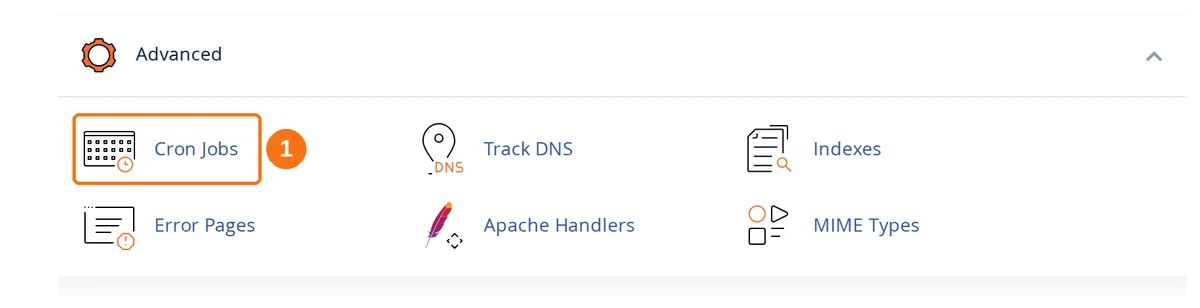
Scroll to the Advanced section of the cPanel dashboard and click Cron Jobs (1).
Step 3: Set Where Cron Output Goes
The Cron Email section at the top of the page decides who receives the output of your cron jobs. If the form is not visible, click more » next to its description.
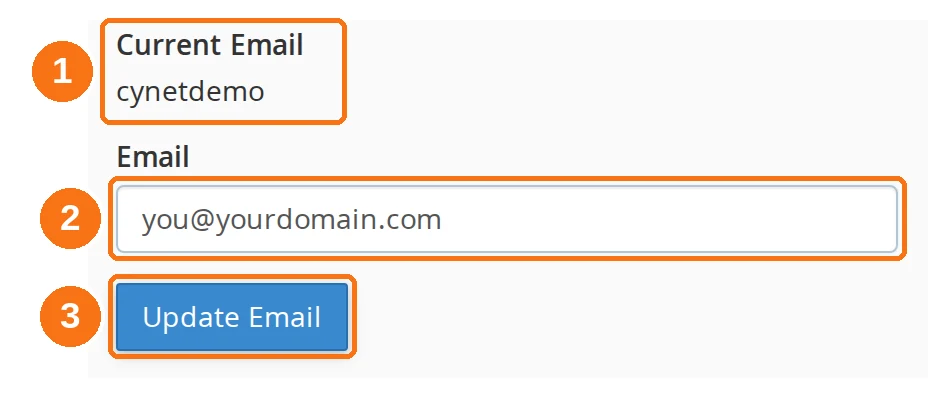
- Current Email — on a new account this shows your cPanel username. Do not rely on it: see below
- Email — enter the address that should receive cron output
- Update Email — click to save. The setting covers every cron job on the account
A blank Current Email means no email at all
As soon as you add your first cron job, cPanel saves an empty email setting with it and Current Email goes blank. Blank does not mean "the default address" — it means cron emails nobody. If you want to hear when a job prints an error, enter an address here. An address you set before adding jobs is kept when you add them.
Cron sends one email every time a job prints anything. A job running every five minutes can send 288 emails a day, so once a job works, silence it by ending its command with >/dev/null 2>&1 (cPanel's own example), or send its output to a log file instead — see Keep a log instead of emails.
Step 4: Add the Cron Job
Scroll down to Add New Cron Job.
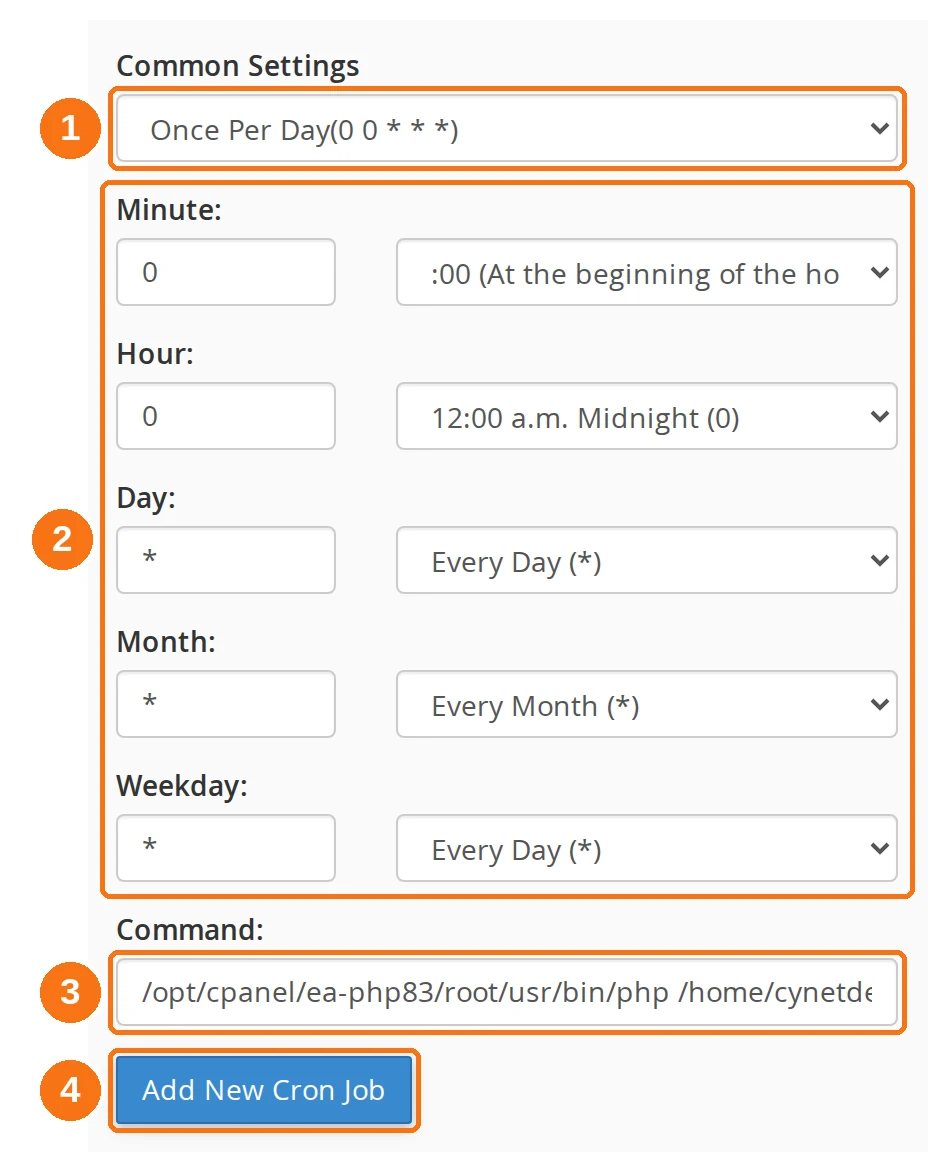
- Common Settings — pick a preset such as Once Per Hour or Once Per Day; it fills in the five fields below for you
- Minute, Hour, Day, Month, Weekday — or set the schedule yourself, by typing a value or using the dropdown beside each field. See "Setting the schedule" below
- Command — the PHP path, the full path to your script, and what to do with the output. See "Building the command" below
- Add New Cron Job — click to save. The job appears under Current Cron Jobs straight away
Building the command
A PHP cron command has three parts:
/opt/cpanel/ea-php83/root/usr/bin/php /home/username/public_html/cron.php >/dev/null 2>&1
/opt/cpanel/ea-php83/root/usr/bin/php— the PHP path for your site's version, from the table above/home/username/public_html/cron.php— the full path to your script. Replaceusernamewith your own cPanel username>/dev/null 2>&1— throws the output away so no email is sent. Leave it off while you are testing, so errors reach your Cron Email address
cd /home/username/public_html && /opt/cpanel/ea-php83/root/usr/bin/php cron.php >/dev/null 2>&1
Setting the schedule
The five fields are read left to right as minute, hour, day of the month, month and day of the week. Cynet's servers run on Malaysia time (UTC+8), so Once Per Day means midnight Malaysia time.
| Field | Allowed values |
|---|---|
| Minute | 0–59 |
| Hour | 0–23 (0 is midnight, 13 is 1 p.m.) |
| Day | 1–31 |
| Month | 1–12 |
| Weekday | 0–6, where 0 is Sunday |
* means "every", */15 means "every 15th", a comma lists values (1,15) and a hyphen gives a range (1-5). Some common schedules:
| Run the job | Minute | Hour | Day | Month | Weekday |
|---|---|---|---|---|---|
| Every 15 minutes | */15 | * | * | * | * |
| Every hour, at 10 past | 10 | * | * | * | * |
| Every day at 3:30 a.m. | 30 | 3 | * | * | * |
| Weekdays at 9 a.m. | 0 | 9 | * | * | 1-5 |
| The 1st of every month at 2 a.m. | 0 | 2 | 1 | * | * |
| Every three months | 0 | 2 | 1 | */3 | * |
Warning: The Every Third Month option in cPanel's Month dropdown fills in*/4, which is every fourth month — January, May and September. For a quarterly job, type*/3(January, April, July, October) into the Month field yourself.
Tip: Avoid scheduling on the hour, especially midnight. Many jobs on a shared server start at exactly midnight; an odd time such as 17 3 * * * (3:17 a.m.) avoids that rush.Step 5: Check the Saved Job
Your job is now listed under Current Cron Jobs, with the schedule in the first five columns and the command beside it.
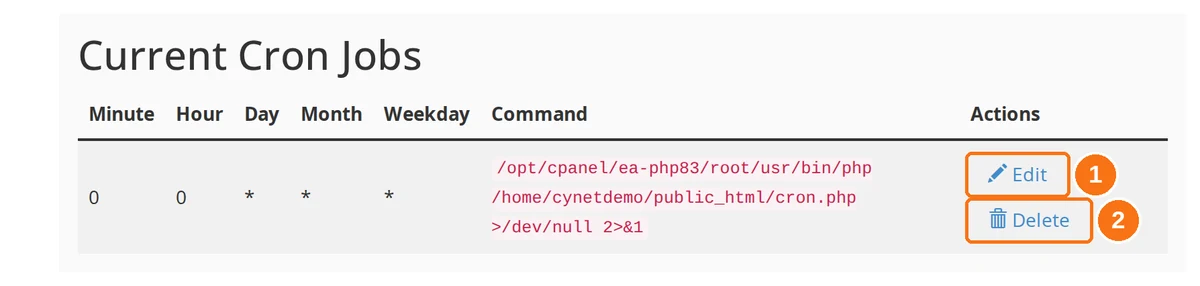
- Edit — opens the job's schedule and command in place, under the row. Change them and click Edit Line to save, or Cancel
- Delete — asks "Delete this cron job?" under the row. Click Delete again to confirm
>/dev/null 2>&1, wait for the email at your Cron Email address, then edit it back to its real schedule and add the redirect.
Common Examples
Replace WP-Cron in WordPress
WordPress's built-in scheduler, WP-Cron, only runs when someone visits your site, so on a quiet site scheduled posts and backups run late, and on a busy one it checks for due tasks on every page view. A real cron job fixes both.
First, turn WP-Cron off by adding this line to wp-config.php, above the line that says "That's all, stop editing!":
define('DISABLE_WP_CRON', true);
If you installed WordPress with Softaculous, the Disable WordPress Cron option at install time does the same thing — see How to Install WordPress.
Then add a cron job that runs every 15 minutes (*/15 * * * *) with this command, using your own PHP version and path:
/opt/cpanel/ea-php83/root/usr/bin/php /home/username/public_html/wp-cron.php >/dev/null 2>&1
Laravel Scheduler
Laravel expects its scheduler to be called every minute (* * * * *), from the project folder:
cd /home/username/laravel && /opt/cpanel/ea-php83/root/usr/bin/php artisan schedule:run >/dev/null 2>&1
Call a URL Instead of a Script
Some applications give you a cron URL rather than a file to run. Call it with curl:
/usr/bin/curl -s https://yourdomain.com/cron-url >/dev/null 2>&1
This goes through your website rather than straight to PHP, so the site's web PHP version and its time limit apply, and anyone who knows the URL can trigger it. Where your application offers a script path as well, prefer that.
Keep a Log Instead of Emails
To keep a record of each run without the emails, append the output to a file with >>:
/opt/cpanel/ea-php83/root/usr/bin/php /home/username/scripts/cleanup.php >> /home/username/cron.log 2>&1
Keep the log outside public_html so it cannot be opened in a browser, and empty it now and then — it counts towards your disk space (see Disk Quota Exceeded).
Troubleshooting
Every email starts with "Content-type: text/html"
The command starts with php or /usr/bin/php, which runs the CGI build of PHP. Replace it with the full path for your version from the table above. The CGI build also stops long scripts at the web time limit, so this may explain jobs that never finish too.
The script works in a browser but fails in cron
- Different PHP version. Check the path in the command matches the version in MultiPHP Manager. This is the usual cause after a site's PHP version is changed: the website moves to the new version, and the cron job stays on the version written in its command.
- Relative paths. Cron starts in your home directory, not in the script's folder, so
require 'config.php'looks in the wrong place. Putcd /home/username/public_html &&in front of the command, or use__DIR__in your script's include paths. - Web-only values. There is no browser in a cron job, so
$_GET,$_POSTand most of$_SERVERare empty. Pass values as arguments after the script name instead and read them from$argv.
The job does not seem to run
- Remove
>/dev/null 2>&1from the command and make sure a Cron Email address is set, so you receive any error. A blank Current Email means nothing is sent. - Check the schedule against Malaysia time, and remember the Month dropdown's Every Third Month really means every fourth.
- Check every path for typos. A wrong path produces "No such file or directory" in the cron email.
- To run a shell script, call it through its interpreter, e.g.
/bin/bash /home/username/scripts/backup.sh, rather than relying on the file being executable.
The job runs out of memory
The command-line PHP builds use the server's default memory limit for that version. Raise it for one job by adding -d memory_limit=512M straight after the PHP path. Cron jobs also count towards your hosting plan's CPU and memory limits, so a heavy job can still be slowed or stopped — run it less often, process its work in smaller batches, or schedule it outside busy hours. Our Terms of Service ask customers to avoid heavy or excessively frequent cron jobs on shared hosting; if your workload needs them, consider a VPS.
I am getting too many cron emails
Add >/dev/null 2>&1 to the end of each job's command once it works, or log to a file as shown in Keep a log instead of emails.